HTML Semantic Tags Explained: Why They Matter for SEO and Accessibility
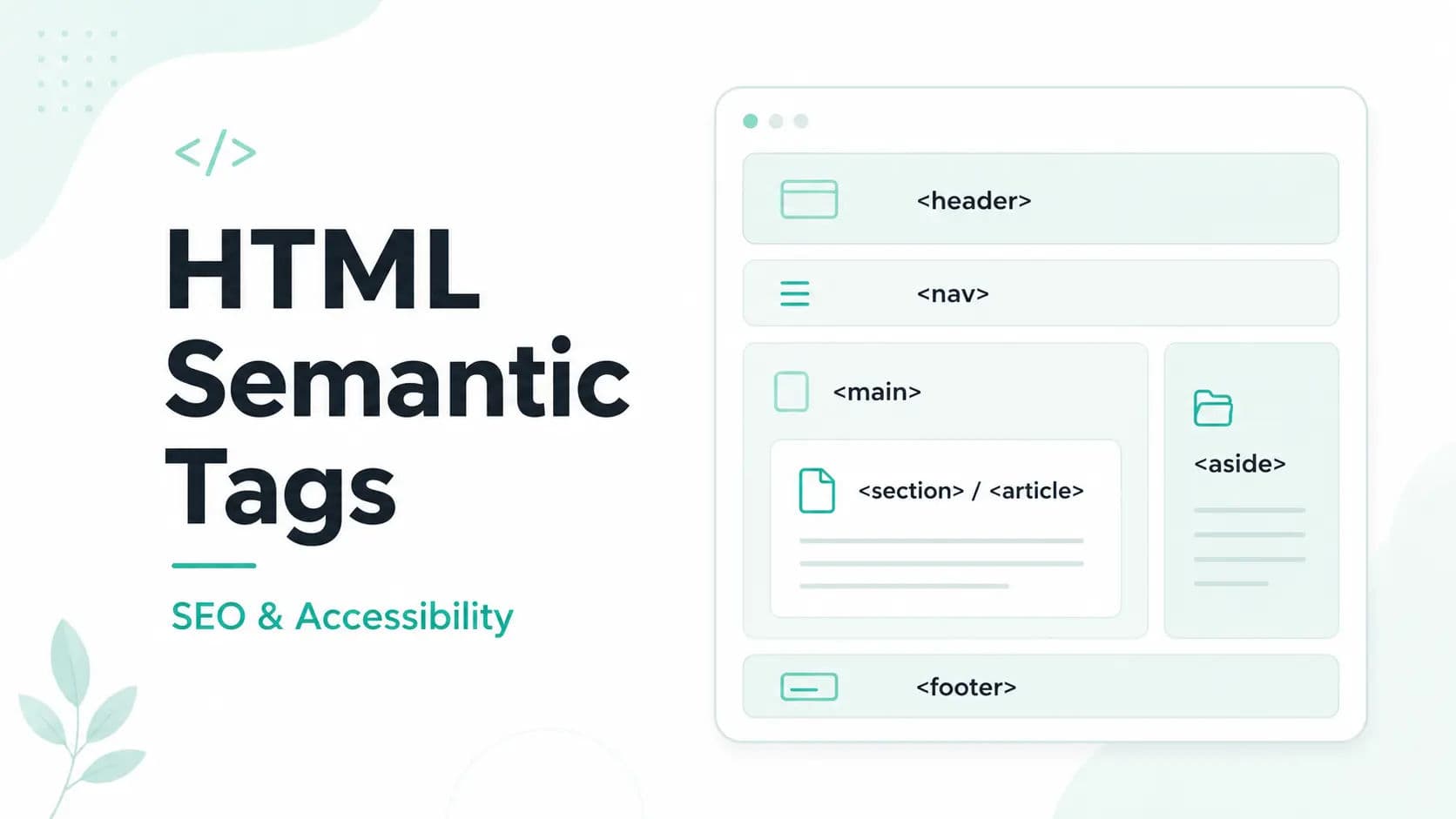
HTML is not only used to display content on a webpage. It also gives meaning and structure to that content.
When beginners start learning HTML, they often use <div> tags for almost everything. A <div> is useful, but it does not explain what the content means. It only creates a generic container.
Semantic HTML solves this problem.
Semantic tags clearly describe the role of the content inside them. For example, <header> represents the top section of a page or section, <nav> represents navigation links, <main> represents the main content, and <footer> represents the bottom section.
In this guide, you will learn what semantic HTML is, why semantic tags matter, and how they help with SEO, accessibility, and clean webpage structure.
What Is Semantic HTML?
Semantic HTML means using HTML tags that clearly describe the meaning of the content.
The word "semantic" means related to meaning.
For example, look at this HTML:
html
<div class="header">
    <h1>My Website</h1>
</div>
This works, but the browser only sees a generic <div> element.
Now look at this version:
html
<header>
    <h1>My Website</h1>
</header>
This is better because the <header> tag clearly tells the browser that this is the header section.
Both examples may look the same on the screen, but the semantic version gives more meaning to the page structure.
Semantic HTML vs Non-Semantic HTML
HTML elements can be divided into two common types:
- Semantic elements
- Non-semantic elements
A semantic element clearly describes its meaning.
Examples:
html
<header>
<nav>
<main>
<section>
<article>
<aside>
<footer>
A non-semantic element does not clearly describe the meaning of the content.
Examples:
html
<div>
<span>
This does not mean <div> and <span> are bad. They are still useful. But they should not be used for everything when a better semantic tag is available.
Example of Non-Semantic HTML
Here is a simple layout using only <div> tags:
html
<div class="header">
    <h1>HTML Tutorial</h1>
</div>

<div class="nav">
    <a href="#">Home</a>
    <a href="#">Lessons</a>
    <a href="#">Contact</a>
</div>

<div class="content">
    <div class="post">
        <h2>What is HTML?</h2>
        <p>HTML is used to create the structure of webpages.</p>
    </div>
</div>

<div class="footer">
    <p>Copyright 2026</p>
</div>
This layout may work visually, but it is not very meaningful.
The browser, search engines, and assistive technologies do not get a clear structure from these generic containers.
Example of Semantic HTML
Now here is the same layout using semantic HTML tags:
html
<header>
    <h1>HTML Tutorial</h1>
</header>

<nav>
    <a href="#">Home</a>
    <a href="#">Lessons</a>
    <a href="#">Contact</a>
</nav>

<main>
    <article>
        <h2>What is HTML?</h2>
        <p>HTML is used to create the structure of webpages.</p>
    </article>
</main>

<footer>
    <p>Copyright 2026</p>
</footer>
This version is cleaner and more meaningful.
The structure is easier to understand because each tag explains its role.
Why Semantic HTML Is Important
Semantic HTML is important for several reasons.
It helps browsers understand the page structure. It helps search engines understand your content better. It helps screen readers and assistive technologies navigate the page. It also makes your code easier to read and maintain.
Semantic HTML improves:
- Page structure
- Code readability
- SEO
- Accessibility
- Maintainability
- User experience
As a beginner, learning semantic HTML early will help you write better and more professional code.
Common HTML Semantic Tags
Let's understand the most common semantic HTML tags one by one.
1. <header> Tag
The <header> tag is used for the introductory section of a webpage or a section.
It often contains:
- Website logo
- Page title
- Main heading
- Navigation menu
- Introductory content
Example:
html
<header>
    <h1>HTML5 and CSS3 Tutorials</h1>
    <p>Learn web development step by step.</p>
</header>
A webpage can have more than one <header>. For example, the full page can have a main header, and an article can also have its own header.
2. <nav> Tag
The <nav> tag is used for navigation links.
It usually contains important links that help users move around the website.
Example:
html
<nav>
    <a href="/">Home</a>
    <a href="/tutorials/html/">HTML</a>
    <a href="/tutorials/css/">CSS</a>
    <a href="/tutorials/javascript/">JavaScript</a>
</nav>
Use <nav> for major navigation areas, such as the main menu, footer navigation, or sidebar navigation.
You do not need to use <nav> for every group of links.
3. <main> Tag
The <main> tag represents the main content of the webpage.
A page should usually have only one <main> tag.
Example:
html
<main>
    <h1>Learn HTML</h1>
    <p>This tutorial helps beginners learn HTML from scratch.</p>
</main>
The <main> tag should not include repeated content like the website header, main navigation, or footer. It should contain the unique content of the page.
4. <section> Tag
The <section> tag is used to group related content.
A section usually has a heading.
Example:
html
<section>
    <h2>HTML Basics</h2>
    <p>HTML is the standard markup language for creating webpages.</p>
</section>
Use <section> when the content represents a separate part of the page.
For example:
- Features section
- About section
- Services section
- FAQ section
- Tutorial section
5. <article> Tag
The <article> tag is used for independent content that can stand alone.
Examples include:
- Blog post
- News article
- Tutorial post
- Forum post
- Product review
- Comment
Example:
html
<article>
    <h2>What is Semantic HTML?</h2>
    <p>Semantic HTML uses meaningful tags to describe webpage structure.</p>
</article>
If the content can be shared or reused independently, <article> is often a good choice.
6. <aside> Tag
The <aside> tag is used for content that is related to the main content but not part of the main flow.
It is commonly used for:
- Sidebar
- Related links
- Author bio
- Advertisements
- Extra notes
- Recommended posts
Example:
html
<aside>
    <h2>Related Tutorials</h2>
    <ul>
        <li><a href="#">HTML Elements</a></li>
        <li><a href="#">HTML Forms</a></li>
        <li><a href="#">HTML Links</a></li>
    </ul>
</aside>
The <aside> tag is useful when you want to add supporting information around the main content.
7. <footer> Tag
The <footer> tag is used for the bottom section of a page or section.
It often contains:
- Copyright text
- Footer links
- Contact information
- Social links
- Privacy policy
- Terms and conditions
Example:
html
<footer>
    <p>© 2026 HTML5 and CSS3. All rights reserved.</p>
</footer>
Like <header>, a page can have more than one <footer>. For example, an article can have its own footer with author information.
8. <figure> and <figcaption> Tags
The <figure> tag is used for self-contained media content, such as an image, diagram, chart, or code illustration.
The <figcaption> tag provides a caption for that content.
Example:
html
<figure>
    <img src="html-structure.png" alt="HTML page structure">
    <figcaption>Basic structure of an HTML webpage.</figcaption>
</figure>
This is better than placing an image and caption separately because it clearly connects the caption with the image.
9. <time> Tag
The <time> tag is used to represent dates or times.
Example:
html
<p>Published on <time datetime="2026-07-10">July 10, 2026</time></p>The datetime attribute provides a machine-readable date, while the visible text is readable for users.
This can be useful for blog posts, events, schedules, and updates.
10.
The tag is used to highlight important text.
Example:
html
<p>Semantic HTML is important for <mark>SEO and accessibility</mark>.</p>It is useful when you want to highlight a word or phrase in the content.
Full Semantic HTML Page Example
Here is a simple webpage structure using semantic HTML:
html
<!DOCTYPE html>
<html>
<head>
    <title>Semantic HTML Example</title>
</head>
<body>

    <header>
        <h1>HTML5 and CSS3 Tutorials</h1>
        <p>Learn web development from basics to advanced.</p>
    </header>

    <nav>
        <a href="#">Home</a>
        <a href="#">HTML</a>
        <a href="#">CSS</a>
        <a href="#">JavaScript</a>
    </nav>

    <main>
        <article>
            <header>
                <h2>What is Semantic HTML?</h2>
                <p>Published on <time datetime="2026-07-10">July 10, 2026</time></p>
            </header>

            <section>
                <h3>Meaning of Semantic HTML</h3>
                <p>Semantic HTML uses meaningful tags to describe the structure of webpage content.</p>
            </section>

            <section>
                <h3>Why It Matters</h3>
                <p>It helps improve readability, accessibility, SEO, and page structure.</p>
            </section>

            <footer>
                <p>Written for beginners learning HTML.</p>
            </footer>
        </article>

        <aside>
            <h2>Related Lessons</h2>
            <ul>
                <li><a href="#">HTML Elements</a></li>
                <li><a href="#">HTML Headings</a></li>
                <li><a href="#">HTML Links</a></li>
            </ul>
        </aside>
    </main>

    <footer>
        <p>© 2026 HTML5 and CSS3. All rights reserved.</p>
    </footer>

</body>
</html>
This structure is much better than using only <div> tags everywhere.
It clearly shows where the header, navigation, main content, article, sections, sidebar, and footer are located.
How Semantic HTML Helps SEO
SEO stands for Search Engine Optimization. It helps your webpage appear better in search results.
Semantic HTML does not magically rank your page at the top. But it helps search engines understand the structure and meaning of your content better.
For example, when you use:
html
<article>
    <h1>HTML Semantic Tags Explained</h1>
    <p>Learn why semantic HTML is important for SEO and accessibility.</p>
</article>
It clearly indicates that this is an independent article with a main heading and supporting content.
Semantic tags can help search engines understand:
- Main content area
- Navigation links
- Article content
- Sidebar content
- Footer content
- Page structure
- Important headings
Good semantic structure also supports better user experience, and user experience is important for long-term SEO.
How Semantic HTML Helps Accessibility
Accessibility means making websites usable for everyone, including people who use screen readers, keyboard navigation, or other assistive technologies.
Semantic HTML helps assistive technologies understand the structure of a page.
For example, a screen reader can identify the main navigation if you use:
html
<nav>
    <a href="#">Home</a>
    <a href="#">Tutorials</a>
    <a href="#">Contact</a>
</nav>
It can also identify the main content when you use:
html
<main>
    <h1>HTML Tutorial</h1>
    <p>Start learning HTML step by step.</p>
</main>
This helps users move through the page more easily.
Semantic HTML is one of the simplest ways to improve accessibility without writing extra JavaScript.
Semantic HTML and Screen Readers
Screen readers read webpage content aloud for users who cannot see the screen clearly or at all.
If your page uses only <div> tags, the screen reader may not understand the structure properly.
For example:
html
<div class="nav">
    <a href="#">Home</a>
    <a href="#">About</a>
</div>
This may look like navigation visually, but it is not as meaningful as:
html
<nav>
    <a href="#">Home</a>
    <a href="#">About</a>
</nav>
The second version gives clear meaning to assistive technologies.
This is why semantic HTML is important for accessible websites.
Semantic HTML Improves Code Readability
Semantic HTML also helps developers.
When your code uses meaningful tags, it becomes easier to read and maintain.
Compare this:
html
<div class="top">
    <div class="menu"></div>
    <div class="content"></div>
    <div class="bottom"></div>
</div>
With this:
html
<header></header>
<nav></nav>
<main></main>
<footer></footer>
The second version is easier to understand immediately.
When another developer reads your code, they can quickly understand the structure of your webpage.
When Should You Still Use <div>?
You do not need to avoid <div> completely.
The <div> tag is still useful when you need a generic container for styling or layout.
Example:
html
<section class="features">
    <div class="feature-card">
        <h3>Easy to Learn</h3>
        <p>HTML is beginner-friendly and simple to understand.</p>
    </div>

    <div class="feature-card">
        <h3>Web Standard</h3>
        <p>HTML is used to create almost every webpage.</p>
    </div>
</section>
Here, <section> gives meaning to the feature section, and <div> is used for individual card containers.
This is a good use of <div>.
The rule is simple:
Use semantic tags when they describe the content. Use <div> when you only need a generic wrapper.
Common Beginner Mistakes with Semantic HTML
Beginners often make some common mistakes while using semantic tags. Let's understand them.
Mistake 1: Using <section> for Everything
The <section> tag should be used for a meaningful section of content, usually with a heading.
Bad example:
html
<section>
    <p>This is just a small line of text.</p>
</section>
Better example:
html
<section>
    <h2>HTML Basics</h2>
    <p>HTML is used to structure webpages.</p>
</section>
If the content is just for styling, use <div> instead.
Mistake 2: Using Multiple <main> Tags
A webpage should usually have only one <main> tag.
Bad example:
html
<main>
    <h1>Page Title</h1>
</main>

<main>
    <p>Another main area</p>
</main>
Better example:
html
<main>
    <h1>Page Title</h1>
    <p>Main content of the page.</p>
</main>
Use one <main> tag for the unique main content of the page.
Mistake 3: Using <article> for Every Box
Not every card or box should be an <article>.
Use <article> when the content can stand alone independently.
Good example:
html
<article>
    <h2>CSS Media Queries for Beginners</h2>
    <p>Learn how to make responsive websites using CSS media queries.</p>
</article>
A blog post card can be an article because it represents independent content.
But a simple decorative box does not need to be an article.
Mistake 4: Replacing All <div> Tags
Semantic HTML does not mean removing every <div> from your code.
You can still use <div> for layout, cards, wrappers, and styling.
The goal is to use meaningful tags where they are appropriate.
Mistake 5: Ignoring Heading Structure
Semantic HTML works best when headings are also properly structured.
Bad example:
html
<h1>Main Title</h1>
<h4>Subheading</h4>
<h2>Another Section</h2>
Better example:
html
<h1>Main Title</h1>
<h2>First Section</h2>
<h3>Subsection</h3>
<h2>Second Section</h2>
Use headings in a logical order. This helps readers, search engines, and assistive technologies understand your content.
Best Practices for Semantic HTML
Follow these simple best practices:
- Use
<header>for introductory content. - Use
<nav>for important navigation links. - Use one
<main>tag for the main content. - Use
<section>for grouped content with a clear topic. - Use
<article>for independent content. - Use
<aside>for related or supporting content. - Use
<footer>for bottom information. - Use proper heading order.
- Use
<figure>and<figcaption>for images with captions. - Use
<div>only when no semantic tag fits. - Keep your HTML clean and readable.
These small habits can make your webpages better and more professional.
Simple Rule to Remember
Here is a simple rule:
If a tag describes the meaning of the content, use it. If you only need a container for styling, use <div>.
For example:
- Website top area? Use
<header>. - Menu links? Use
<nav>. - Main page content? Use
<main>. - Independent blog post? Use
<article>. - Related sidebar? Use
<aside>. - Bottom area? Use
<footer>. - Generic wrapper? Use
<div>.
This rule will help you choose the right HTML tag.
Final Thoughts
Semantic HTML is an important part of writing clean, meaningful, and professional webpages.
It helps browsers, search engines, screen readers, developers, and users understand your content better.
As a beginner, you do not need to memorize every semantic tag at once. Start with the most common ones:
html
<header>
<nav>
<main>
<section>
<article>
<aside>
<footer>
Once you understand these tags, your HTML structure will become cleaner and easier to maintain.
Semantic HTML is not difficult, but it makes a big difference. It improves code quality, supports accessibility, and helps create better websites.
If you are learning HTML, make semantic tags a regular part of your coding practice.
Keep Exploring
Continue with HTML Tutorial, HTML Semantic Layout Tags, HTML Meta Tags for SEO, HTML5 New Tags, and 10 HTML and CSS Projects for Beginners to Practice in 2026.

Author
Swapnil Raja
Founder of HTML5ANDCSS3.org and creator of its tutorials and tools.
Focused on practical frontend learning through real examples and hands-on utilities.
View profile