CSS Media Queries for Beginners: How to Make a Website Responsive
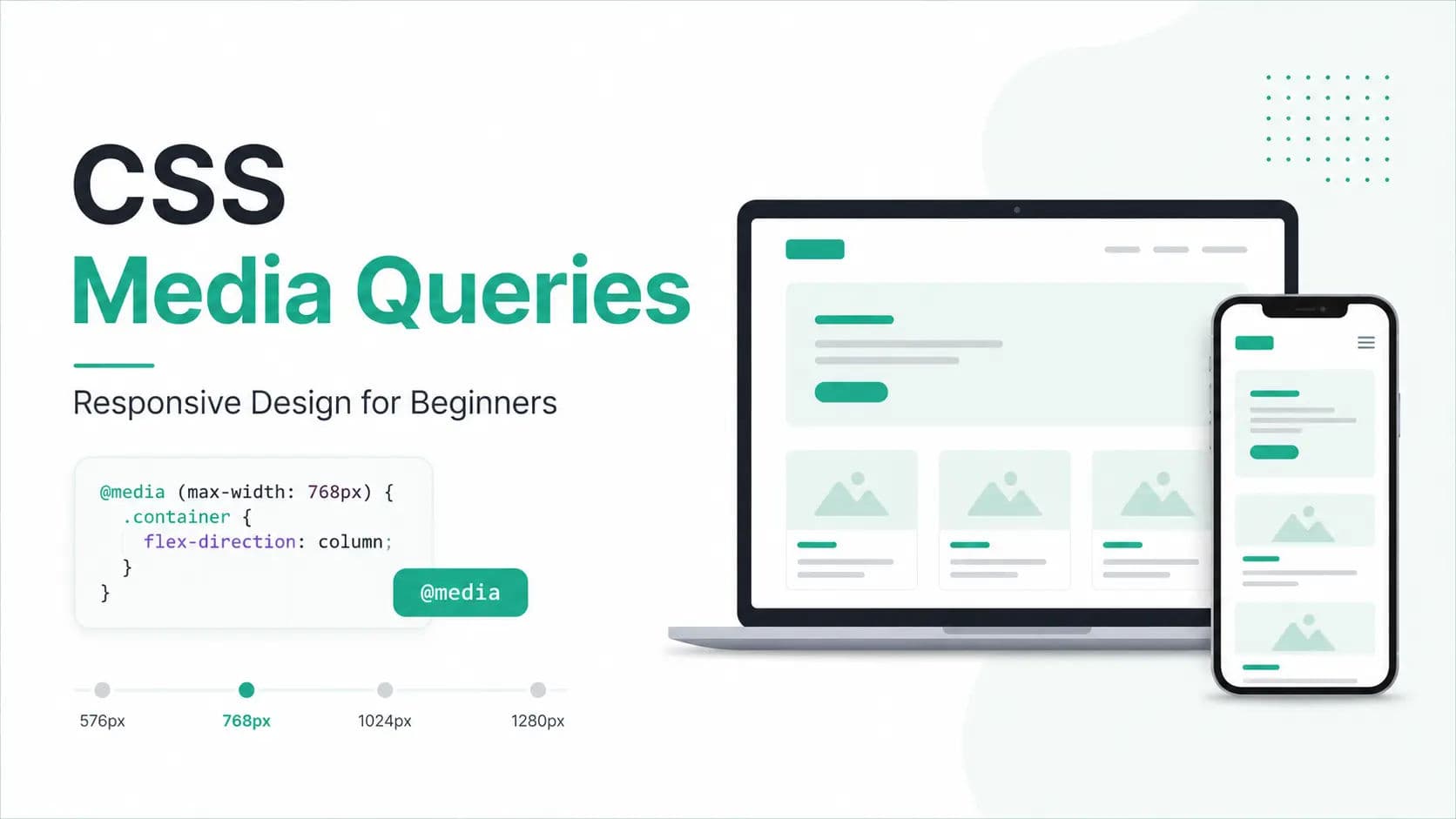
CSS media queries allow you to apply different CSS styles for different screen sizes, so your website can work well on mobile, tablet, laptop, and desktop screens.
A website should not look good only on a laptop or desktop screen. Today, users visit websites from mobile phones, tablets, laptops, desktops, and large monitors.
If your website looks perfect on desktop but breaks on mobile, users may leave quickly. Text may become too small, images may overflow, buttons may be hard to tap, and the layout may look messy.
This is where @media rules help. They make your website responsive, mobile-friendly, and easier to use on every device.
If you are new to CSS, start with the CSS Tutorial first, then use this guide to understand responsive design in a practical way.
What Are CSS Media Queries?
CSS media queries are rules that apply CSS only when a certain condition is true.
For example, you can write CSS that works only when the screen width is smaller than 768px.
css
@media (max-width: 768px) {
  body {
    background-color: lightgray;
  }
}
In this example, the background color changes only when the screen width is 768px or smaller.
This is useful because mobile screens have less space than desktop screens. So we often need different layouts for small screens.
Why Are Media Queries Important?
Media queries are important because they help you create responsive websites. A responsive website automatically adjusts its layout according to the screen size.
- A desktop layout may have 3 columns.
- A tablet layout may have 2 columns.
- A mobile layout may have 1 column.
Without media queries, the same layout may appear on all screen sizes, which can create design problems.
Media queries help you control:
- Font size
- Image size
- Column layout
- Navbar layout
- Spacing
- Button size
- Section width
- Hide/show elements
- Mobile-friendly design
Basic Syntax of CSS Media Query
The basic syntax is simple:
css
@media (condition) {
  selector {
    property: value;
  }
}
Here is a real example:
css
@media (max-width: 600px) {
  h1 {
    font-size: 28px;
  }
}
This means: if the screen width is 600px or smaller, the h1 font size becomes 28px.
Understanding max-width and min-width
Beginners usually get confused between max-width and min-width. Let us understand both clearly.
max-width Media Query
max-width means the CSS will apply up to a maximum screen width.
css
@media (max-width: 768px) {
  .container {
    width: 100%;
  }
}
This CSS applies when the screen width is 768px or smaller. Use max-width when you write desktop styles first and then adjust for tablet and mobile screens.
min-width Media Query
min-width means the CSS will apply from a minimum screen width and above.
css
@media (min-width: 768px) {
  .container {
    width: 750px;
  }
}
This CSS applies when the screen width is 768px or larger. Use min-width when you follow a mobile-first approach.
Mobile-First vs Desktop-First Approach
There are two common ways to write responsive CSS: mobile-first and desktop-first.
Mobile-First CSS
In mobile-first CSS, you first write styles for small screens. Then you use min-width media queries for larger screens.
css
.container {
  width: 100%;
  padding: 15px;
}
@media (min-width: 768px) {
  .container {
    width: 750px;
    margin: auto;
  }
}
@media (min-width: 1024px) {
  .container {
    width: 1000px;
  }
}
This approach is popular because many users browse websites from mobile devices. Mobile-first CSS also keeps your base design simple.
Desktop-First CSS
In desktop-first CSS, you first write styles for large screens. Then you use max-width media queries for smaller screens.
css
.container {
  width: 1000px;
  margin: auto;
}
@media (max-width: 768px) {
  .container {
    width: 100%;
    padding: 15px;
  }
}
Beginners should learn both, but mobile-first CSS is usually better for new websites. If you already have a desktop design, desktop-first can also be useful.
Common CSS Breakpoints
Breakpoints are screen widths where your design changes. There is no fixed rule that every website must use the same breakpoints, but beginners can start with these common widths.
| Device Type | Common Width |
|---|---|
| Small mobile | 480px |
| Mobile / large phone | 600px |
| Tablet | 768px |
| Small laptop | 1024px |
| Desktop | 1200px |
css
@media (max-width: 600px) {
  .box {
    width: 100%;
  }
}
@media (min-width: 601px) and (max-width: 1024px) {
  .box {
    width: 50%;
  }
}
@media (min-width: 1025px) {
  .box {
    width: 33.33%;
  }
}
Do not blindly copy breakpoints. Resize your layout and add breakpoints where the design actually starts breaking.
Example: Making a Card Layout Responsive
Card layouts are one of the most common places where media queries are useful.
html
<div class="card-container">
  <div class="card">
    <h2>HTML</h2>
    <p>Learn the structure of webpages.</p>
  </div>
  <div class="card">
    <h2>CSS</h2>
    <p>Learn styling and layouts.</p>
  </div>
  <div class="card">
    <h2>JavaScript</h2>
    <p>Learn interactivity and logic.</p>
  </div>
</div>
css
.card-container {
  display: grid;
  grid-template-columns: repeat(3, 1fr);
  gap: 20px;
}
.card {
  background-color: #f5f7fa;
  padding: 20px;
  border-radius: 8px;
}
@media (max-width: 768px) {
  .card-container {
    grid-template-columns: 1fr;
  }
}
On desktop, this layout shows 3 cards in one row. On mobile, the cards appear in one column.
Example: Responsive Navbar
A desktop navbar usually appears in one row, but it may not fit properly on mobile screens.
html
<nav class="navbar">
  <div class="logo">My Website</div>
  <ul class="nav-links">
    <li><a href="#">Home</a></li>
    <li><a href="#">Tutorials</a></li>
    <li><a href="#">Examples</a></li>
    <li><a href="#">Contact</a></li>
  </ul>
</nav>
css
.navbar {
  display: flex;
  justify-content: space-between;
  align-items: center;
  padding: 15px 30px;
  background-color: #29ab87;
}
.logo {
  color: white;
  font-size: 24px;
  font-weight: bold;
}
.nav-links {
  display: flex;
  gap: 20px;
  list-style: none;
}
.nav-links a {
  color: white;
  text-decoration: none;
}
@media (max-width: 768px) {
  .navbar {
    flex-direction: column;
    gap: 15px;
  }
  .nav-links {
    flex-direction: column;
    align-items: center;
    padding: 0;
  }
}
Now the navbar becomes vertical on small screens.
Responsive Font Size
Sometimes large headings look good on desktop but too big on mobile.
css
.hero-title {
  font-size: 56px;
}
@media (max-width: 768px) {
  .hero-title {
    font-size: 34px;
  }
}
You can also use modern CSS functions like clamp() for responsive font sizes.
css
.hero-title {
  font-size: clamp(32px, 5vw, 56px);
}
Responsive Images
Images can overflow on small screens if their width is fixed. The better approach is to let images shrink with the available space.
css
img {
  max-width: 100%;
  height: auto;
}
You may not always need a media query for images. Sometimes flexible CSS is enough. Related lessons: HTML Images and CSS Background Image.
Change Layout from Row to Column
Many desktop sections use a two-column layout. On mobile, that layout often needs to become a single column.
html
<section class="about-section">
  <div class="about-text">
    <h2>About Us</h2>
    <p>We help beginners learn web development.</p>
  </div>
  <div class="about-image">
    <img src="image.jpg" alt="Learning web development">
  </div>
</section>
css
.about-section {
  display: flex;
  gap: 30px;
  align-items: center;
}
.about-text,
.about-image {
  width: 50%;
}
.about-image img {
  max-width: 100%;
  height: auto;
}
@media (max-width: 768px) {
  .about-section {
    flex-direction: column;
  }
  .about-text,
  .about-image {
    width: 100%;
  }
}
For the basics of flexible sizing, read CSS Width and Height.
Best Practices for CSS Media Queries
- Do not use too many breakpoints. Add a breakpoint only when the layout needs it.
- Use flexible units like %, fr, rem, em, vw, and vh.
- Test on mobile, tablet, desktop, landscape, and portrait sizes.
- Keep media queries organized near the related CSS or in clear sections.
- Do not depend only on device names. Think about where your layout breaks.
A flexible container is usually better than a fixed-width container.
css
.container {
  width: 90%;
  max-width: 1200px;
  margin: auto;
}
Common Mistakes Beginners Make
| Mistake | Better Approach |
|---|---|
| Forgetting the viewport meta tag | Add it inside the head section |
| Using fixed width everywhere | Use width: 90% and max-width |
| Very small mobile text | Keep body text readable |
| Small buttons | Use enough padding for tap targets |
| Not testing horizontal overflow | Resize and inspect on small screens |
For responsive design, your HTML should include the viewport meta tag inside the <head> section.
html
<meta name="viewport" content="width=device-width, initial-scale=1.0">You can also review the HTML Responsive Design lesson for the HTML side of responsive pages.
Simple Responsive Page Example
Here is a complete beginner-friendly example that includes a viewport meta tag, responsive hero section, CSS Grid card layout, and a media query for mobile screens.
html
<!DOCTYPE html>
<html>
<head>
  <title>Responsive Page Example</title>
  <meta name="viewport" content="width=device-width, initial-scale=1.0">
  <style>
    body {
      margin: 0;
      font-family: Arial, sans-serif;
      color: #222;
    }
    .hero {
      background-color: #29ab87;
      color: white;
      padding: 60px 20px;
      text-align: center;
    }
    .hero h1 {
      font-size: 48px;
      margin-bottom: 15px;
    }
    .hero p {
      font-size: 20px;
      max-width: 700px;
      margin: auto;
    }
    .container {
      width: 90%;
      max-width: 1100px;
      margin: 40px auto;
    }
    .cards {
      display: grid;
      grid-template-columns: repeat(3, 1fr);
      gap: 20px;
    }
    .card {
      background-color: #f5f7fa;
      padding: 25px;
      border-radius: 10px;
    }
    .card h2 {
      color: #29ab87;
    }
    @media (max-width: 768px) {
      .hero {
        padding: 40px 15px;
      }
      .hero h1 {
        font-size: 32px;
      }
      .hero p {
        font-size: 16px;
      }
      .cards {
        grid-template-columns: 1fr;
      }
    }
  </style>
</head>
<body>
  <section class="hero">
    <h1>Learn Web Development</h1>
    <p>Start learning HTML, CSS, and JavaScript step by step.</p>
  </section>
  <main class="container">
    <div class="cards">
      <div class="card">
        <h2>HTML</h2>
        <p>HTML creates the structure of webpages.</p>
      </div>
      <div class="card">
        <h2>CSS</h2>
        <p>CSS makes webpages beautiful and responsive.</p>
      </div>
      <div class="card">
        <h2>JavaScript</h2>
        <p>JavaScript adds interactivity to websites.</p>
      </div>
    </div>
  </main>
</body>
</html>
You can paste this example into the Try It Editor and resize the browser to see the layout change.
Media Queries with Flexbox
css
.row {
  display: flex;
  gap: 20px;
}
.column {
  flex: 1;
}
@media (max-width: 768px) {
  .row {
    flex-direction: column;
  }
}
This changes a horizontal row into a vertical column on mobile. This pattern is very common in responsive websites.
Media Queries with CSS Grid
css
.grid {
  display: grid;
  grid-template-columns: repeat(4, 1fr);
  gap: 15px;
}
@media (max-width: 1024px) {
  .grid {
    grid-template-columns: repeat(2, 1fr);
  }
}
@media (max-width: 600px) {
  .grid {
    grid-template-columns: 1fr;
  }
}
This layout shows 4 columns on desktop, 2 columns on tablet, and 1 column on mobile.
Do You Always Need Media Queries?
No, not always. Modern CSS can create responsive layouts without many media queries.
css
.card-container {
  display: grid;
  grid-template-columns: repeat(auto-fit, minmax(250px, 1fr));
  gap: 20px;
}
This automatically adjusts the number of columns based on available space. It is useful for cards, galleries, product lists, and blog sections.
Media queries are still important when you need specific design changes at certain screen sizes.
Final Tips for Beginners
- First create the basic layout.
- Resize the browser slowly.
- Notice where the layout breaks.
- Add a media query at that point.
- Test again on mobile and desktop.
- Keep your CSS simple.
Do not try to memorize every device size. Instead, understand how your layout behaves.
Responsive design is not about writing many media queries. It is about making your content easy to read and use on every screen.
Conclusion
CSS media queries are one of the most important parts of responsive web design. They allow you to apply different styles for different screen sizes.
With media queries, you can make layouts change from desktop to mobile, adjust font sizes, fix spacing, and create better user experiences.
As a beginner, start with simple media queries like @media (max-width: 768px). Then practice by creating responsive navbars, card layouts, hero sections, and full webpages.

Author
Swapnil Raja
Founder of HTML5ANDCSS3.org and creator of its tutorials and tools.
Focused on practical frontend learning through real examples and hands-on utilities.
View profile